
Why fuel cost per load matters
- Quote with confidence: know the lowest price that still covers fuel and leaves you a profit
- Pick the right vehicle: see which truck does the job cheapest
- Spot bad loads early: before the fuel is burnt, not at month end
- Keep up with fuel prices: see at once what a price increase does to every load
How fuel links to a shipment
Before you start
- Your vehicles: added on the Settings page, Vehicles tab
- At least two fill-ups per vehicle: fuel consumption is measured between two fill-ups
- A fuel surcharge sheet: on Fuel > Fuel & Surcharge, with your fuel allocation % and the latest fuel price, linked to the customer
- A shipment with a route and a price: the price saved on the $ tab, and a vehicle assigned (or chosen on the Fuel tab)
Step by step
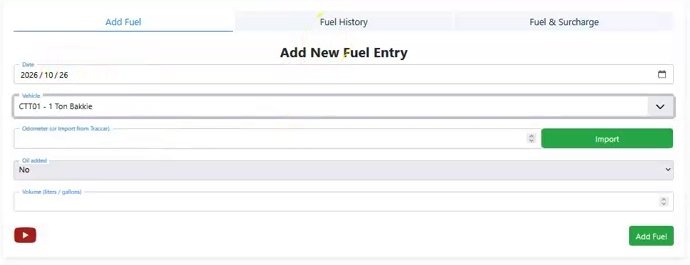
Log each fill-up on Add Fuel
- Date: the day you filled up
- Vehicle: the truck or bakkie you filled
- Odometer: type the reading, or click Import to bring it in from the vehicle's tracker
- Oil added: No or Yes
- Volume: the litres you put in (gallons if your company Settings use gallons)
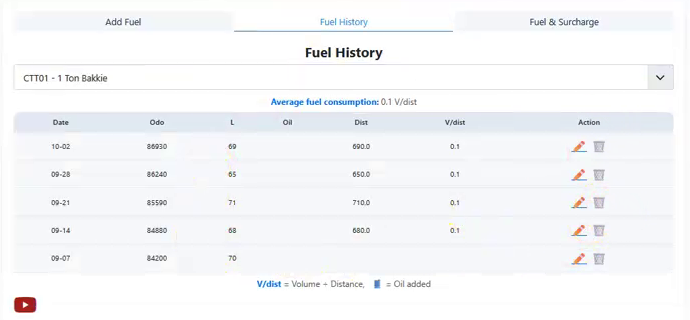
Check the vehicle's fuel consumption on Fuel History
- Odo: the odometer reading
- L: the litres filled
- Dist: kilometres driven since the previous fill-up
- V/dist: volume ÷ distance, the litres used per km
- Average fuel consumption: shown above the table, the figure your shipments use
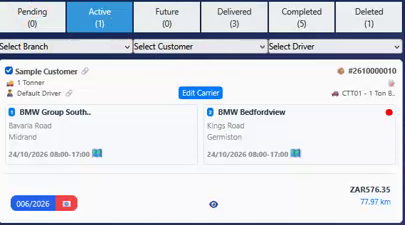
Open the shipment
Click the fuel pump tab
- Vehicle: the vehicle on the shipment. The list shows each vehicle's fuel use per 100 km (10 L/dist means 10 litres per 100 km)
- Fuel Efficiency: litres per km, from Fuel History
- Trip Distance: from the shipment's route
- Fuel Allocation (%): the share of your price meant for fuel, from the customer's fuel surcharge sheet
- Fuel Price: the latest price on that sheet
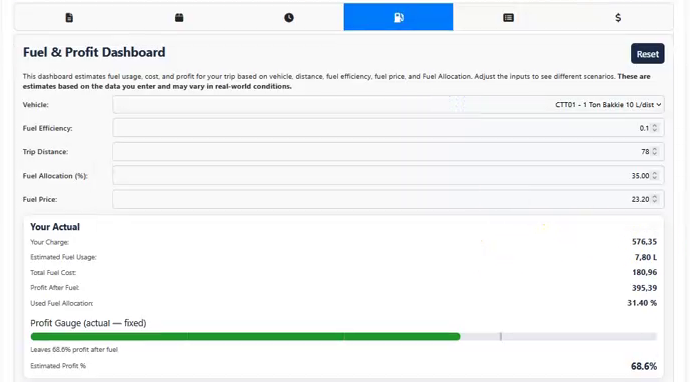
Read Your Actual: what this load really earns
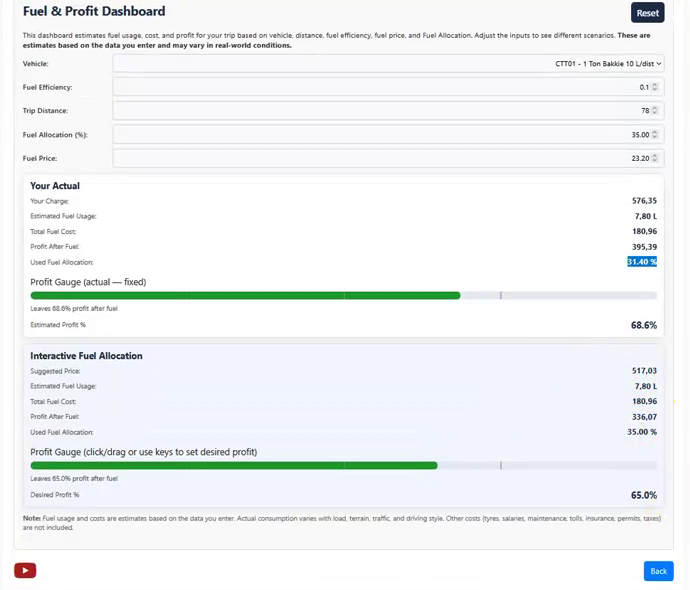
| Line | How it is worked out | Example |
|---|---|---|
| Your Charge | The price on the $ tab | R576.35 |
| Estimated Fuel Usage | 78 km × 0.1 L per km | 7.80 L |
| Total Fuel Cost | 7.80 L × R23.20 | R180.96 |
| Profit After Fuel | R576.35 − R180.96 | R395.39 |
| Used Fuel Allocation | R180.96 ÷ R576.35 | 31.40% |
| Estimated Profit % | The share left after fuel | 68.6% |
Try a scenario with Interactive Fuel Allocation
- Drag the Profit Gauge (or click it and use the arrow keys) to the profit you want
- The Suggested Price, Profit After Fuel and Used Fuel Allocation change as you drag
- Change any box at the top, such as Fuel Price or Vehicle, to test a different case
- Click Reset to put everything back
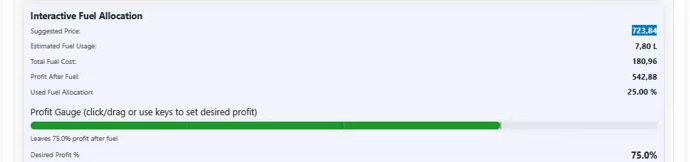
| Profit Gauge | Fuel share | Suggested Price | Profit After Fuel |
|---|---|---|---|
| 50% | 50% | R361.92 | R180.96 |
| 65% (the customer's sheet) | 35% | R517.03 | R336.07 |
| 68.6% (what you charged) | 31.40% | R576.35 | R395.39 |
| 75% | 25% | R723.84 | R542.88 |
Change the price if you need to
The formulas: how to calculate fuel cost for a trip
- Fuel used = trip distance × litres per km
- Fuel cost per trip = fuel used × fuel price
- Profit after fuel = your price − fuel cost
- Fuel share (Used Fuel Allocation) = fuel cost ÷ your price
- Suggested price = fuel cost ÷ fuel share you want (for 75% profit after fuel, fuel may be 25%: R180.96 ÷ 0.25 = R723.84)
Use it to quote: three quick checks
1. Which truck should do this load?
| Vehicle | Fuel use | Fuel cost | Profit after fuel | Fuel share |
|---|---|---|---|---|
| 1 Ton Bakkie | 10 L/100 km | R180.96 | R395.39 | 31% |
| 4 Tonner | 19.19 L/100 km | R347.26 | R229.09 | 60% |
| 8 Tonner | 28 L/100 km | R506.69 | R69.66 | 88% |
2. What if diesel goes up?
3. What is my lowest price?
Tips for accurate fuel figures
- Log every fill-up: one missed fill-up makes the next row's consumption wrong
- Fill to full: half-tank fills make consumption jump up and down
- Use Import for the odometer: if the vehicle has a tracker, it saves typing mistakes
- Let drivers log at the pump: the worxAPP Fuel tab takes 30 seconds
- Keep the fuel price current: add the new price on Fuel & Surcharge each month, and click Update Surcharge Sheet to save it
- Check the route: the trip distance comes from the route, so a wrong stop order gives a wrong fuel cost
Words used on this page
- Fuel consumption (V/dist): litres used per km. × 100 = litres per 100 km
- Fuel allocation: the share of your price you plan to spend on fuel, for example 35%
- Used Fuel Allocation: the share of this load's price that fuel really takes
- Profit after fuel: your price minus the fuel cost. Not your final profit
- Fuel surcharge: an extra % added to your rates when the fuel price rises above your base rate
- Profit Gauge: the bar you drag to set the profit after fuel you want
Frequently asked questions
Is Profit After Fuel my real profit?
No. It is what is left after fuel only. Tyres, salaries, maintenance, insurance, tolls, permits and taxes are not included. See the cost per km article to work out your full cost.
How do I calculate the fuel cost of a trip?
Distance × litres per km × fuel price. For 78 km at 0.1 L per km and R23.20 a litre: 7.8 L × R23.20 = R180.96. worxTMS does this for you on the shipment's Fuel tab.
The dashboard shows dashes.
No vehicle is chosen, or the vehicle has no fuel logged yet. Log at least two fill-ups for it on Add Fuel.
It shows Infinity %.
The shipment has no price yet. Save one on the $ tab.
Where do the 35% and the fuel price come from?
From the customer's fuel surcharge sheet on Fuel > Fuel & Surcharge. Keep the fuel price up to date there.
What is the difference between fuel allocation and the fuel surcharge?
Fuel allocation is the share of your price meant for fuel. The fuel surcharge is the extra % you add when the fuel price rises above the base rate your rates were built on. worxTMS uses the allocation to work out the surcharge.
Why does my truck's fuel use look wrong?
Check Fuel History for a missed or mistyped fill-up. A wrong odometer gives a wrong distance. Edit it with the pencil or delete it with the bin.
Can I check a load before I accept it?
Yes. Create the shipment, save a price on the $ tab, and open the Fuel tab. Choose a vehicle there if none is assigned yet.
Does changing the Profit Gauge change my invoice?
No. The scenario is only a calculator. The price on the $ tab is what gets invoiced.
Does it work in other currencies, not just rand?
Yes. worxTMS works in any currency, for example US dollars, Australian dollars, euros or pounds. The fuel price, fuel cost, profit after fuel and suggested price all show in the shipment's currency. The rand amounts on this page are only an example.
Does it work in miles and gallons?
Yes. The units follow your company Settings. Fuel consumption then shows as gallons per mile, and the formulas work the same way.
Related articles
- How to work out your cost per km: your full cost, not just fuel
- Single stop shipment: book, deliver, price and invoice a load
- Settings: Vehicles tab: add the vehicles you log fuel for