
FrontAccounting Integration
Need an accounting system? Connect worxTMS to FrontAccounting, a full accounting system that's built into worxTMS at no extra cost. worxTMS hosts it for you and you use it from inside worxTMS with no separate login.
Connecting FrontAccounting
1
Complete your Settings page first
Before you connect, make sure your company details on the Settings page are complete. worxTMS uses them to set up your FrontAccounting company.
2
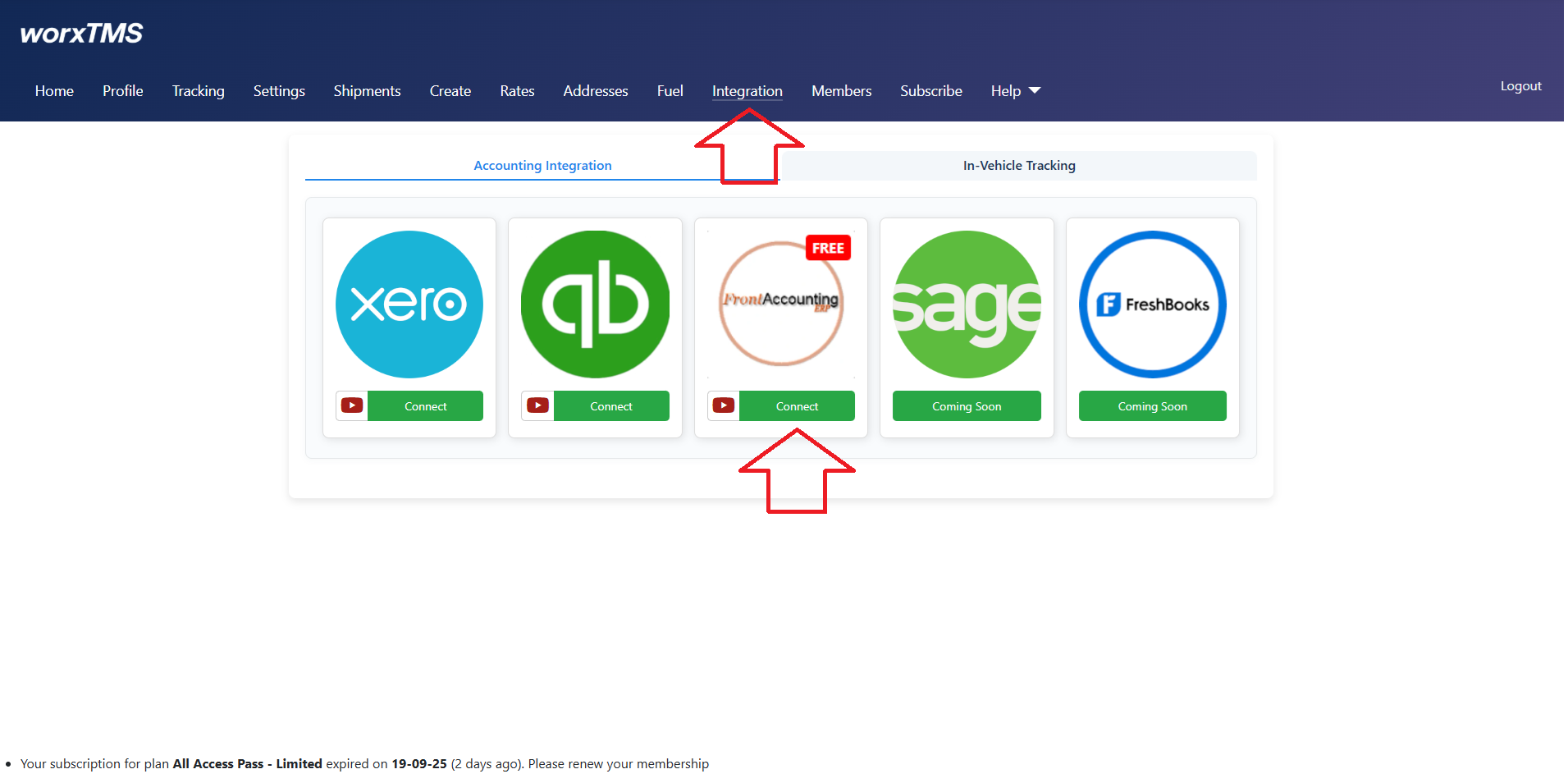
Click "Connect" on the Front Accounting tab
Go to Integration in the top menu, open the Front Accounting tab and click Connect. worxTMS will create your FrontAccounting account for you automatically.
3
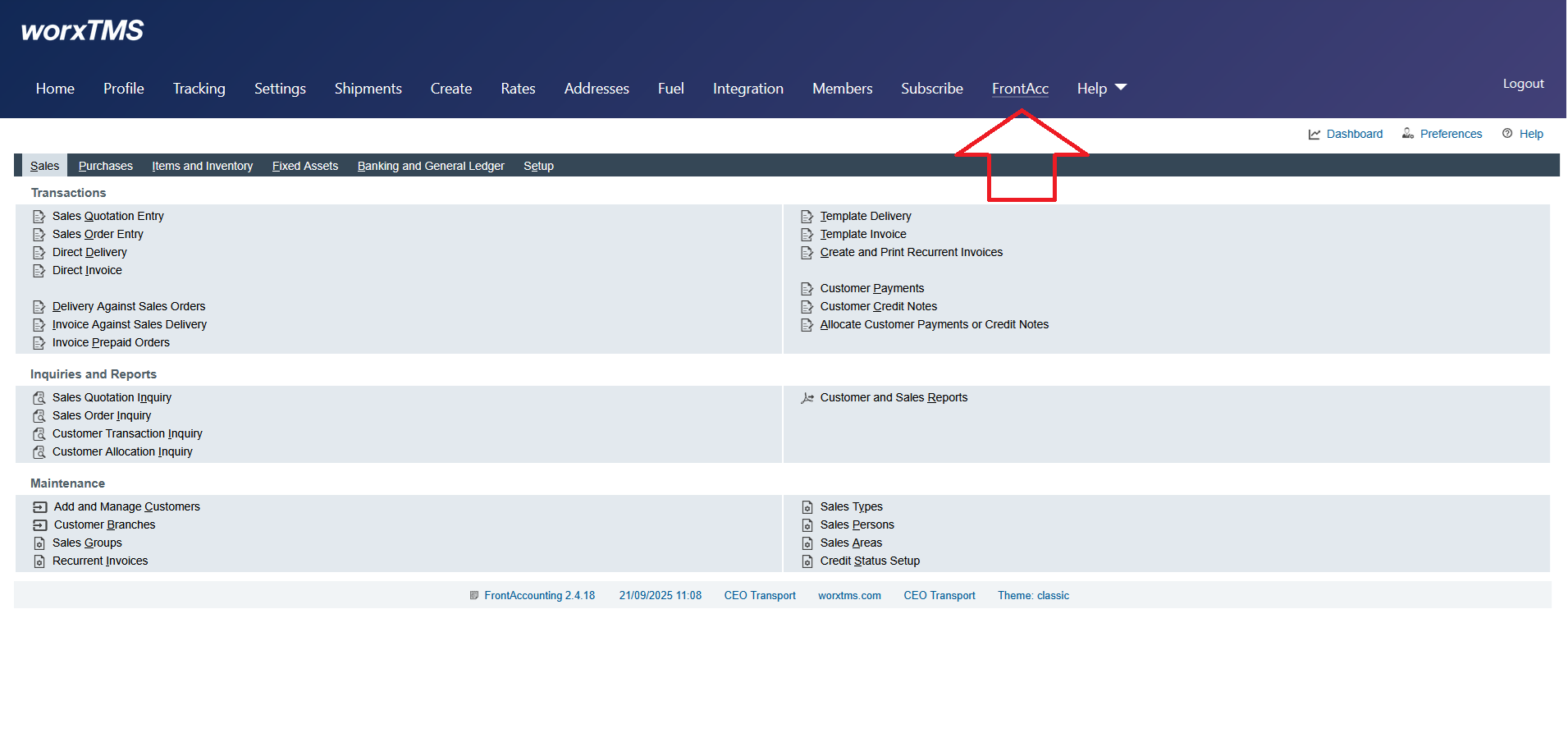
Open FrontAccounting from the "FrontAcc" menu
Once connected, a new FrontAcc item appears in the top menu. Click it to use FrontAccounting directly inside worxTMS. You don't need a separate login.
4
FrontAccounting is Connected
The Front Accounting tab on the Integration page confirms that you're connected. You'll also have the option to disconnect if needed.
Complete These 3 Setup Steps
- Add customers that require mandatory Purchase Orders
If any of your customers require a Purchase Order (PO) number for invoicing, add them here so worxTMS can enforce this requirement automatically. - Select the services/items you want to use in worxTMS
Select only the services or items from FrontAccounting that you plan to use in worxTMS. - Select your Fuel Surcharge item
Choose the Fuel Surcharge service/item from FrontAccounting. When a shipment includes a fuel surcharge, worxTMS will add it as a separate line item on the invoice.
Tip: Customers and services are added inside FrontAccounting (FrontAcc menu). Once added there, they're available in worxTMS.
Using FrontAccounting Day to Day
- Invoices: create, view and email invoices from the Shipments page in worxTMS with single clicks.
- Customers, payments and the rest of your accounting: done directly inside FrontAccounting from the FrontAcc menu.
- Dashboards: FrontAccounting includes Sales, Purchases, Items and Inventory, Banking and General Ledger, and Setup.
FrontAccounting Setup Reference
Most of these settings are set up automatically when you connect. They're included here for reference, in case you want to check or change them.
A
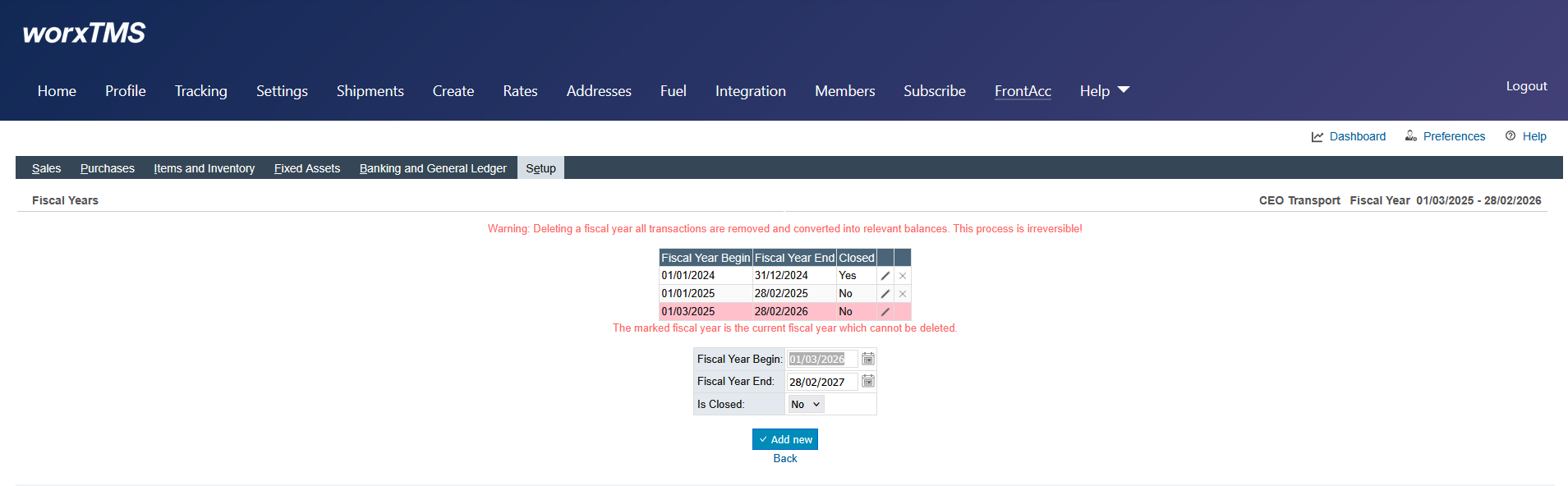
Setup → Fiscal Years
Fiscal Years separate your accounting periods. They usually follow the calendar year (Jan 01 – Dec 31) but can follow your own financial year. Create a new Fiscal Year under Setup → Fiscal Years, then set the active year under Setup → Company Setup.
- When year-end arrives, create the next Fiscal Year.
- Closed years can no longer accept entries; balances roll over to retained earnings.
- Unused fiscal years can be deleted.
B
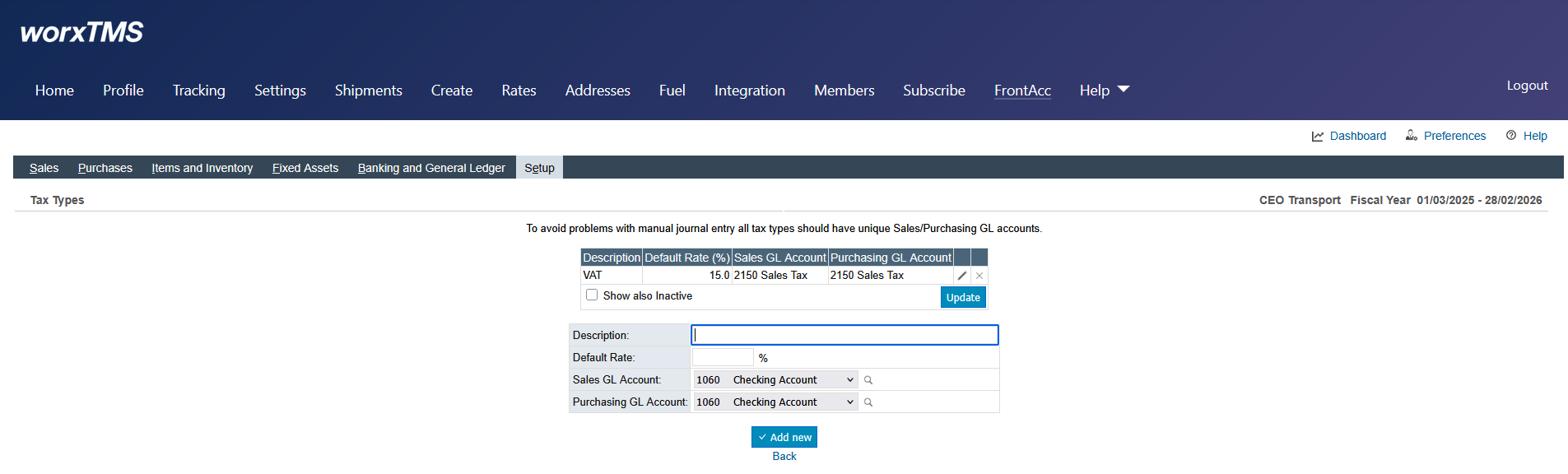
Setup → Tax Types
Define your taxes, such as VAT, GST or Sales Tax, with a rate and description for each (for example VAT 15% and VAT 0%). Tax Types are then used by Item Tax Types and Tax Groups.
C
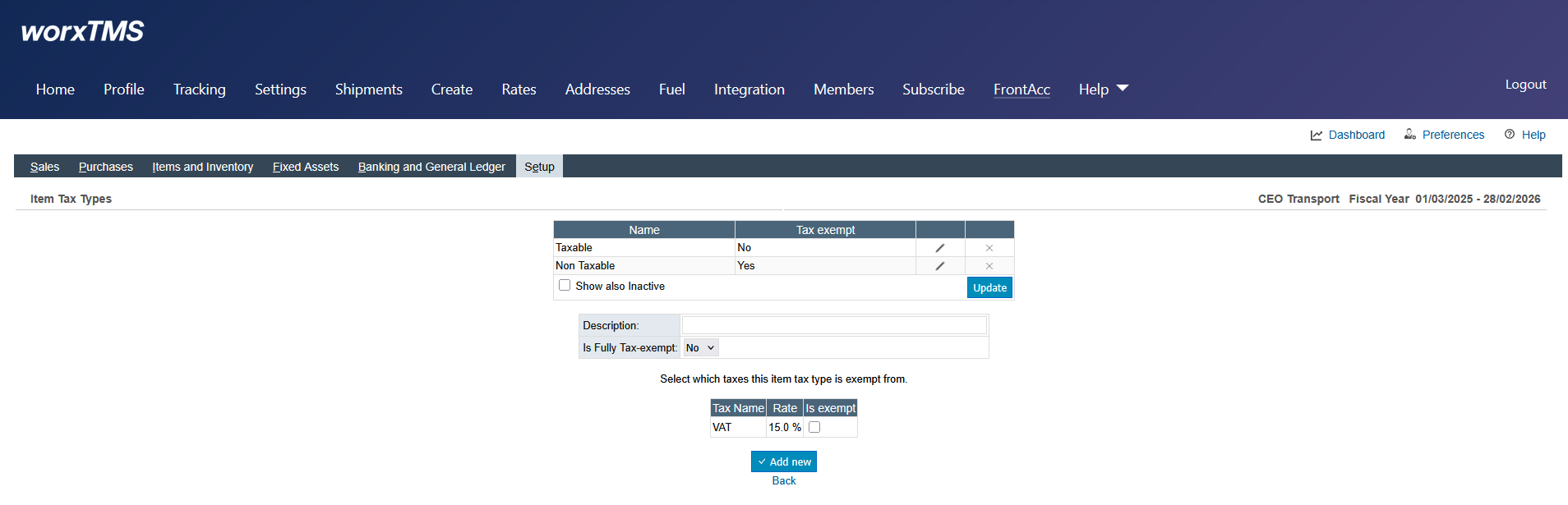
Setup → Item Tax Types
Add Taxable and Non Taxable item tax types so you can choose which services carry tax.
D
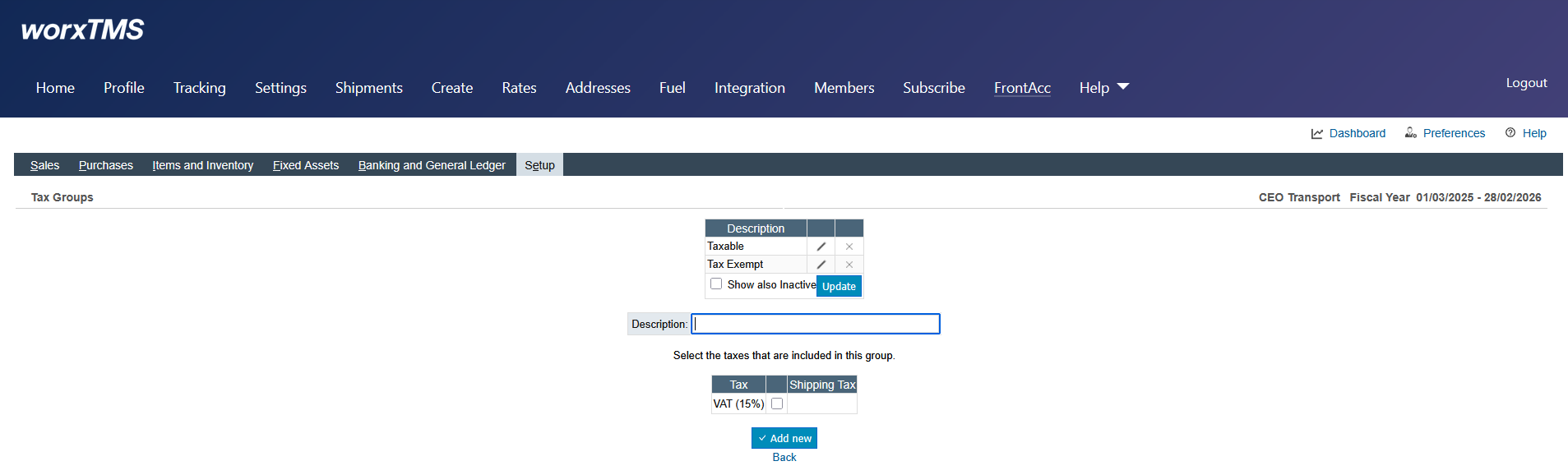
Setup → Tax Groups
Tax Groups bundle tax rates and are assigned to customers. For most transport companies, two groups are enough:
- Taxable: VAT/GST applied
- Tax Exempt: no tax applied
E
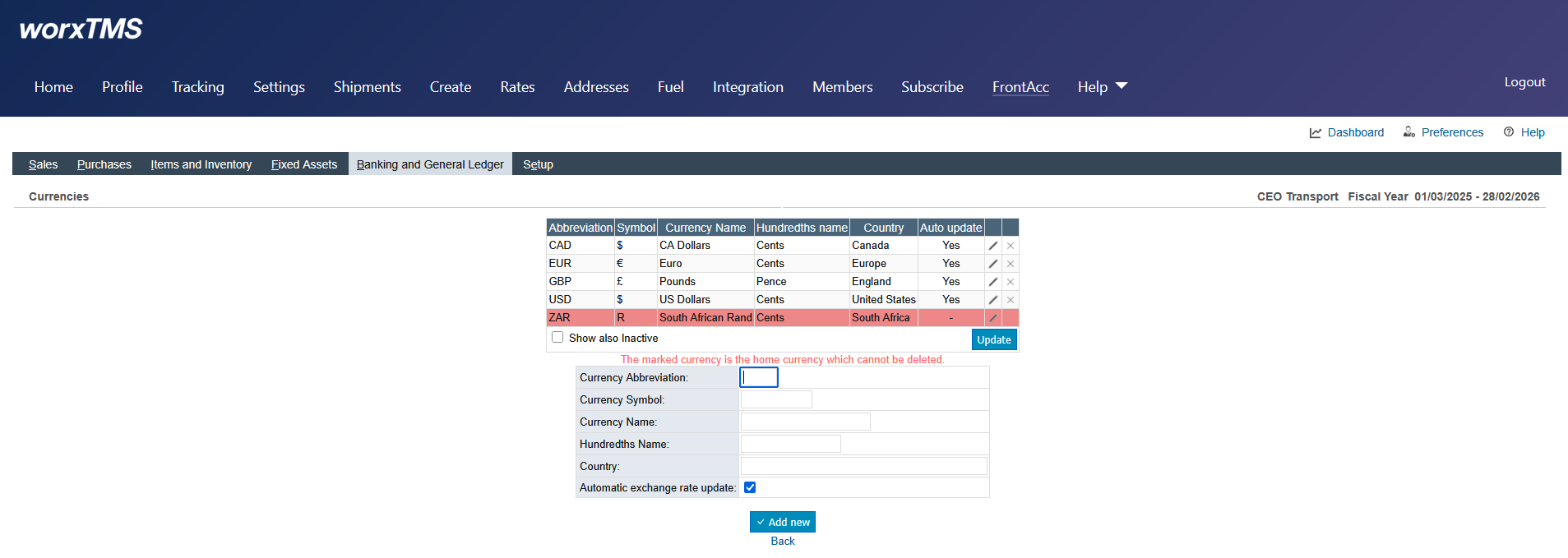
Banking and General Ledger → Currencies
Set your home currency (for example ZAR), add any foreign currencies you deal in and keep exchange rates up to date. Foreign currency transactions convert to your home currency automatically.
Need more accounting help? worxTMS support covers the integration with worxTMS. For detailed accounting guidance, visit the FrontAccounting website.
✓ FrontAccounting Integration Complete
Your worxTMS account now has its own built-in accounting system. You can continue setting up worxTMS and begin invoicing your shipments.
Transport and accounting in one place. Free, built in and ready when you are.