Help Desk

Shipments

Run your transport business from your phone | worxTMS

You don't need to be at a PC to run your loads. From your phone you can book a load, check the route, give it to a driver and vehicle, and watch it live on the map. It works the same as on the PC, made to fit a phone screen. Your whole transport business, in your pocket.

Before you start

  • The worxAPP: install worxTMS from the Google Play Store (Android)
  • Your office login: log in with your own worxTMS username and password, not a driver login. A driver login only shows the driver screens.
  • A vehicle and a driver: add them on the Vehicles tab and the Members page first, or use the Default Vehicle and Default Driver
  • A customer and a service: they come from your accounting system, or use the House Account

The flow in one line

Create → Route → Pending (assign) → Active (live on the map)

Step by step

1

Your loads at a glance

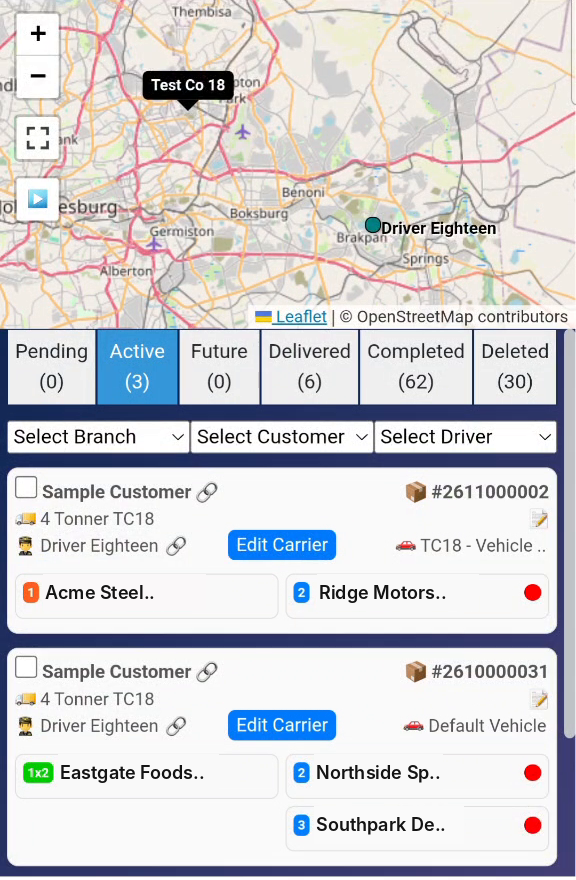
After you log in, the Shipments screen opens: the map at the top, then the tabs Pending, Active, Future, Delivered, Completed and Deleted, with the number of loads in each. Below them are the shipment cards. Use Select Branch, Select Customer and Select Driver to filter the list.
The Shipments screen on a phone with the map, tabs and shipment cards
2

Book the load

Open Create. The form is the same as on the PC, one field under the other.
  • Select Customer, the Branch, the Customer Reference if there is one, and the Service (for example 4 Tonner)
  • Pickup Location: type the address and tap it in the list. Tap Pickup Date and choose the day on the calendar, then the Ready Time and Close Time.
  • Delivery Location: do the same, with the Drop-off Date, Open Time and Close Time
  • Enter the Pieces and Weight, then tap Next
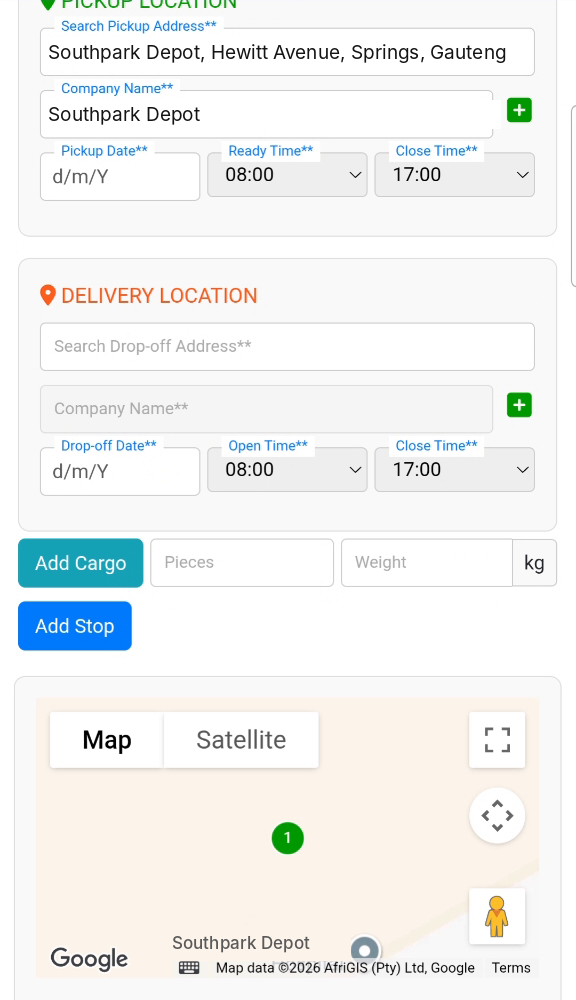
The Create form on a phone with the pickup and delivery filled in
Tip: type exactly 4 letters to search only your Address Book. Type more to see Google places too. Saved addresses make booking on the phone much faster.
3

Check the route and Save

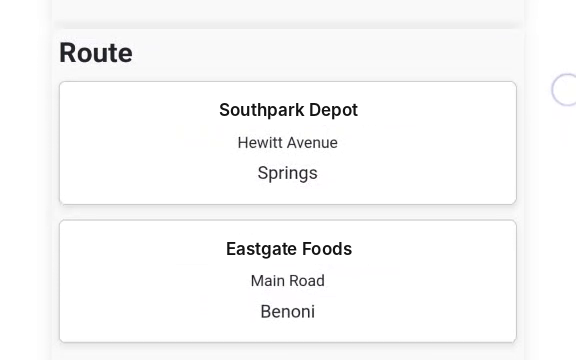
worxTMS shows Saved successfully and the Route page opens, with the Pickups and Dropoffs and the route in order. Scroll down to see it on the map. With more stops, use Optimize Pickups or Optimize Deliveries and choose the Route Strategy and Start Point. Tap Save.
The Route page on a phone with the route and the Save button
4

Assign a driver and vehicle

Back on the Shipments screen, tap the Pending tab. Tick the box on the new card: its stops show on the map. Tap Assign Carrier. In Assign Driver & Vehicle:
  • Own Driver: choose the Driver and the Vehicle / Power Unit (both are needed), and trailers if any
  • External Carrier: choose one of your carriers instead
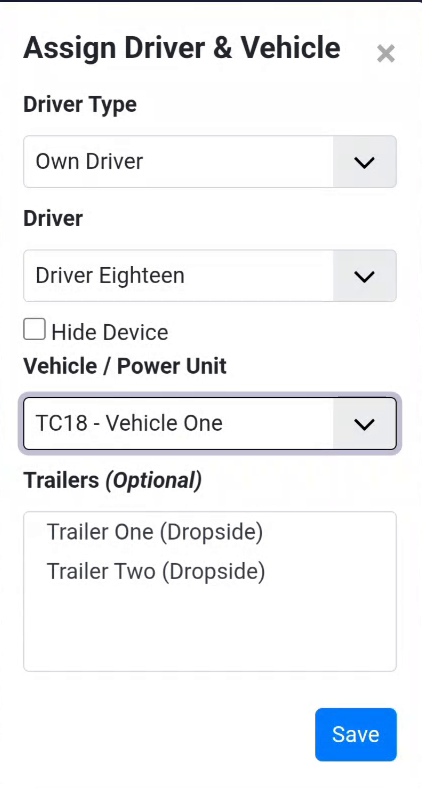
Tap Save. worxTMS shows Carrier assigned and the load moves to the Active tab.
The Assign Driver and Vehicle window on a phone
Send it on WhatsApp. The link icon next to the driver's name copies his driver link, and the link icon next to the customer copies the worxLIVE tracking link. Paste them straight into WhatsApp from the same phone.
5

Watch it live

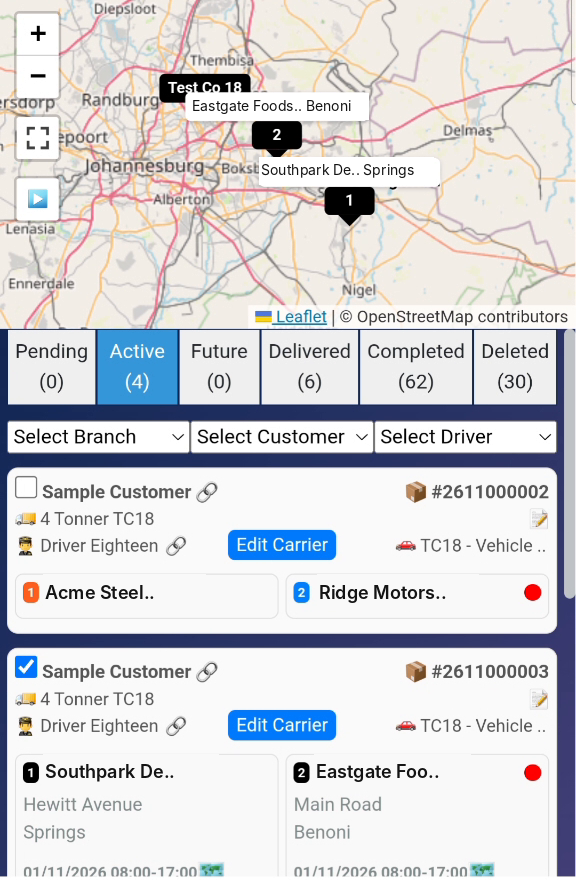
In the Active tab, tick a card to see its numbered stops on the map, with your drivers and vehicles. As the driver updates each stop, the card and the map update on your phone too.
The Active tab on a phone with the load's stops on the map
Red means missing, green means done. The dot after a delivery stop stays red until the POD is attached, then turns green.

Frequently asked questions

Is this a different system from the PC?
No. It is the same worxTMS account and the same loads. Book on the phone and it is on the PC straight away, and the other way round.

I logged in but only see the driver screens.
You used a driver login. Log out and log in with your own office login.

The keyboard hides the form.
Tap an empty part of the screen to close the keyboard, or scroll up to see the field you are typing in.

I tapped Next but cannot find my shipment.
Check the Pending tab. If the pickup date is a later day, it is in the Future tab.

It says "Please select both driver and vehicle".
With Own Driver, both the Driver and the Vehicle / Power Unit are needed.

I have an iPhone.
The worxAPP is for Android. On an iPhone, open worxtms.com in your phone's browser and log in: the pages work the same way.

Can I invoice from my phone?
Yes. The Invoice button and the envelope on the card in the Delivered tab work the same as on the PC. See Single stop shipment.

  • Single stop shipment: the full flow, from booking to invoice
  • Multi stop shipment: one load with several pickups or deliveries
  • Driver link: how your driver updates loads from his phone
  • worxLIVE link: share live tracking with anyone
  • Addresses: save your regular addresses for faster booking
✓ Booked, routed and dispatched from your phone
Your load is with the driver and live on the map. Follow it from the Active tab wherever you are.
Book it. Track it. Bill it. All from your pocket.

Was this helpful?

Share

Still stuck?

If this article did not solve it, open a ticket and our team will pick it up.

New ticket Back to knowledge base