A single stop shipment has one pickup and one delivery. This article takes it from start to end: book it, check the route, give it to a driver, deliver it, add the price, invoice it and email the invoice. For a load with more than one pickup or delivery, see Multi stop shipment.
Before you start
- Company details: your address is your depot, so set it on the Settings tab first
- A vehicle: add at least one on the Vehicles tab, or you cannot assign the load
- A driver: add your drivers on the Members page (or use the Default Driver)
- A customer and a service: they come from your accounting system, or use the House Account
The flow in one line
Create → Route → Pending (assign) → Active (driver updates) → Delivered (price, invoice, email) → Completed
Step by step
1
Book the load on the Create page
Click Create in the top menu.
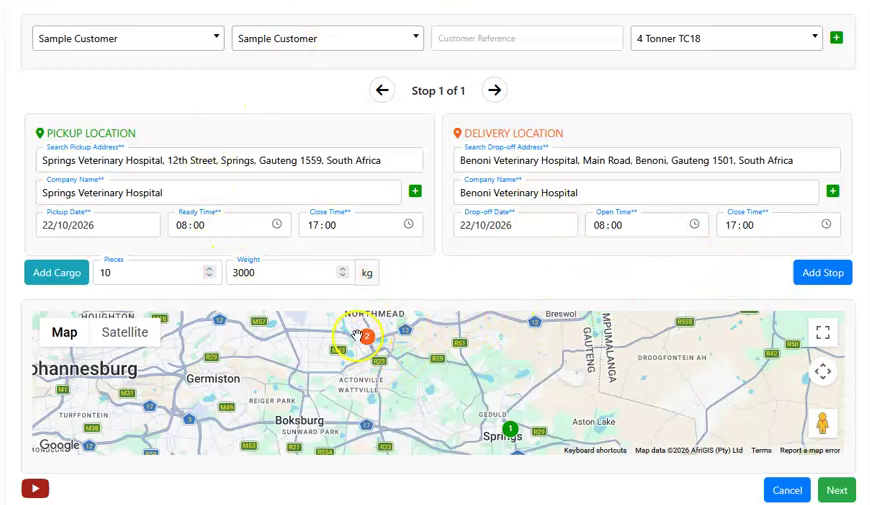
- Select Customer and the Branch, add the Customer Reference if there is one (it shows on the invoice), and choose the Service (for example 4 Tonner). The service decides which rates are used.
- Pickup Location: type the address and pick it from the list. Saved addresses come up first, then Google. Set the Pickup Date, Ready Time and Close Time.
- Delivery Location: do the same, with the Drop-off Date, Open Time and Close Time.
- Enter the Pieces and Weight. Add Cargo is optional, for item sizes, value and insurance.
- Click Next. Both stops show on the map.
Tip: type exactly 4 letters to search only your Address Book. Type more to see Google places too.
2
Check the route and Save
The shipment is already saved and the Route page opens. With one pickup and one delivery the route fills in by itself. Check it on the map and click Save.
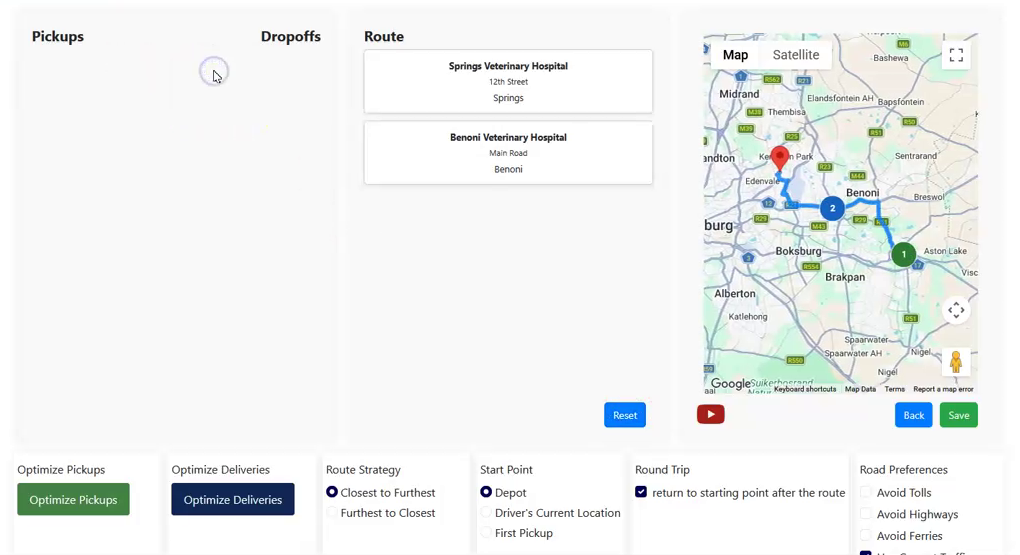
Why it matters: the route distance, including the empty trip from your depot and back, is used for the price and the profit after fuel.
3
Find it in the Pending tab
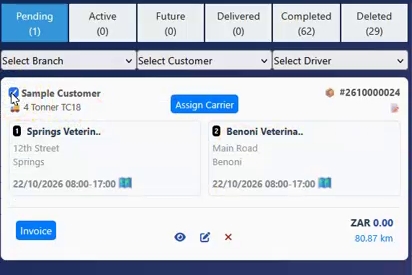
worxTMS opens the Shipments page. New loads wait in the Pending tab until they are assigned. A load dated for a later day goes to the Future tab. Tick the box on the card to open it.
4
Assign a driver and vehicle
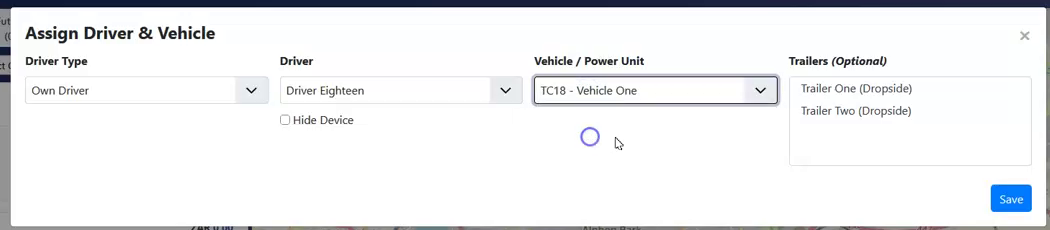
Click Assign Carrier on the card. In Assign Driver & Vehicle:
- Own Driver: choose the Driver and the Vehicle / Power Unit (both are needed), and trailers if any
- External Carrier: choose one of your carriers from the Carriers tab instead
Click Save. worxTMS shows Carrier assigned and the load moves to the Active tab.
Send the driver his link. Once assigned, the link icon next to the driver's name copies his driver link. Send it on WhatsApp: no app or login needed. The link icon next to the customer copies the worxLIVE tracking link for your customer.
5
Update the status as the load moves
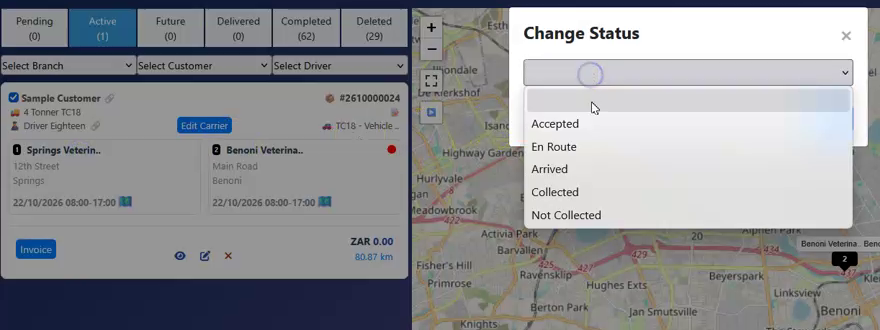
The driver updates each stop from his link or the worxAPP. The office can do it too: click a stop on the card, pick the status in Change Status and click Save.
- Pickup: Accepted, En Route, Arrived, Collected (or Not Collected)
- Every update shows live in the office, and on the map
6
Deliver it and add the POD
At the drop, click the delivery stop and choose Delivered. Type who received it in Received by, attach the POD as a PDF with Browse (the worxAPP can scan it with the camera), and click Save.
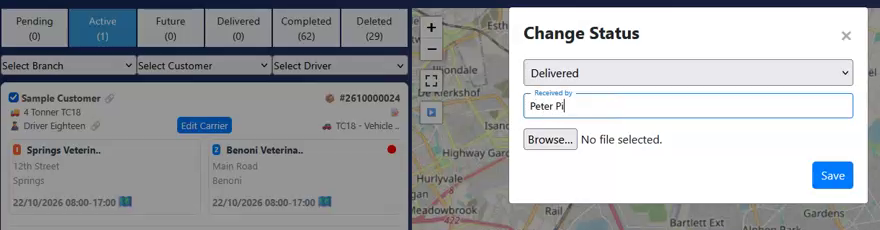
When the delivery is done, the load moves to the Delivered tab by itself. worxTMS also makes an e-POD with the time and GPS location of the delivery.
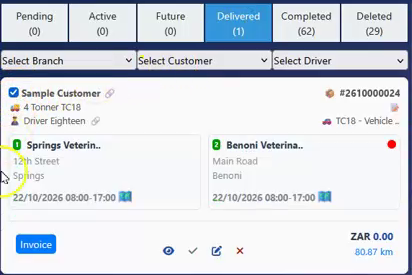
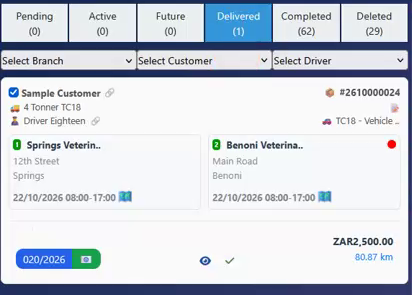
Red means missing, green means done. The dot after the delivery stop is red until a POD is attached, then green. Click a green dot to view the POD.
7
Add the price on the $ tab
Tick the card and click the eye icon to open the load. Click the $ tab (Billing Lines). Line 1 starts with the price from your rate sheet. Type your price in Price if it is different, and click Save. The price now shows on the card.
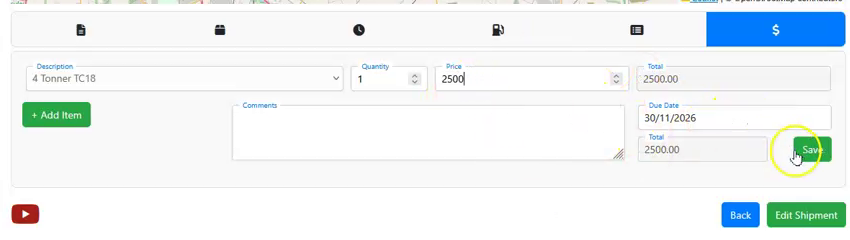
Fuel surcharge on its own line? Then line 1 must be the price before the surcharge, or it is charged twice. Always click Save on the $ tab before invoicing.
8
Create the invoice
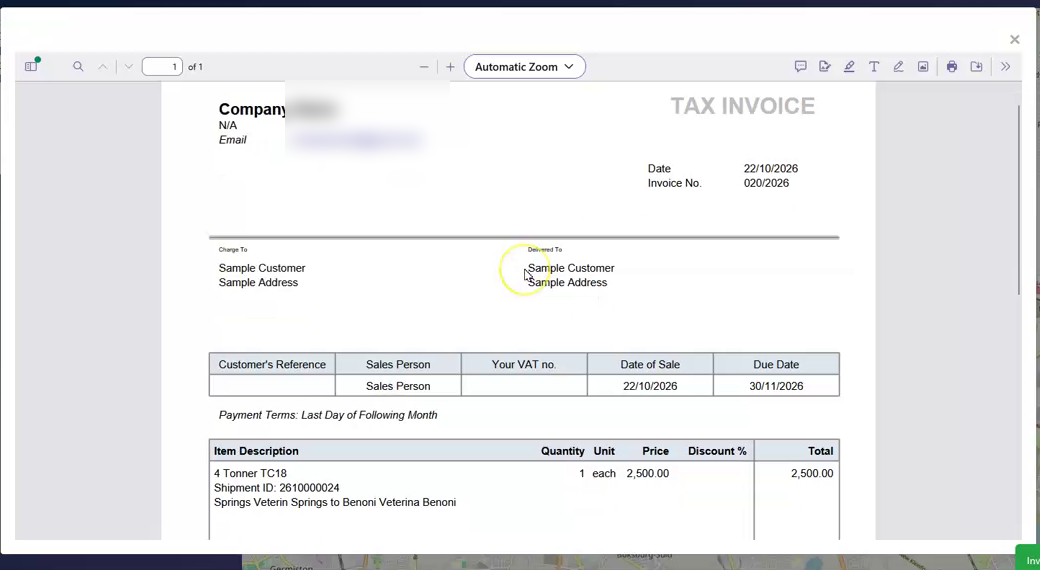
On the card in the Delivered tab, click Invoice, then Ok. worxTMS creates the invoice in your accounting system and shows a preview. The Invoice button changes to the invoice number (for example 020/2026).
9
Email the invoice
Click the envelope next to the invoice number. worxTMS emails the invoice, with the POD, to your customer. The envelope turns from red to green.
No email sent? The customer needs an email contact in your accounting system.
10
Move it to Completed
Click the tick on the card. The load moves to the Completed tab. It only moves there when you click the tick.
Frequently asked questions
I clicked Next but cannot find my shipment.
Check the Pending tab. If the pickup date is a later day, it is in the Future tab.
My vehicle is not in the Assign list.
Add it on the Vehicles tab in Settings first. Trailers show only under Trailers (Optional).
It says "Please select both driver and vehicle".
With Own Driver, both the Driver and the Vehicle / Power Unit are needed.
Does the driver need to install an app?
No. Send him the driver link. The worxAPP is optional and adds scanning PODs with the camera.
Can I invoice without a POD?
Yes, but it is best to attach the POD first, so the customer gets both together and pays faster.
My invoice total is too high.
The fuel surcharge is probably charged twice. Put the price before surcharge in line 1 on the $ tab, void the invoice and invoice again.
How do I void an invoice?
Hover over the invoice number on the card and click the X.
What if the load has more than one pickup or drop?
That is a multi stop shipment. See the Multi stop shipment article.
Related articles
- Multi stop shipment: one load with several pickups or deliveries
- Step 1: Set up your company details (Settings tab): your depot and formats
- Settings: Vehicles tab: add your trucks, bakkies and trailers
- Settings: Carriers tab: add subbies and link carriers with worxLINK
- Driver link: how your driver updates loads from his phone
- Invoices, PODs and waybills: more on invoicing and printing waybills
✓ Shipment done, start to end
Booked, delivered, invoiced and emailed. For loads with more than one stop, see Multi stop shipment.
Book it. Track it. Bill it. All in one place.
