
Settings Tab: Set Up Your Company Details, Depot and Units
Why the Settings tab matters
- Your address is your depot: worxTMS measures every route from it, including the empty trip from your depot to the first pickup and back from the last drop
- Your formats run the whole system: choose km or miles once, and every shipment distance and every rate follows it
- Your time zone sets the clock: if it is wrong, every shipment time will look wrong
- Your Company ID connects you to others: share it to link up with other transport companies on worxLINK
Where to find it
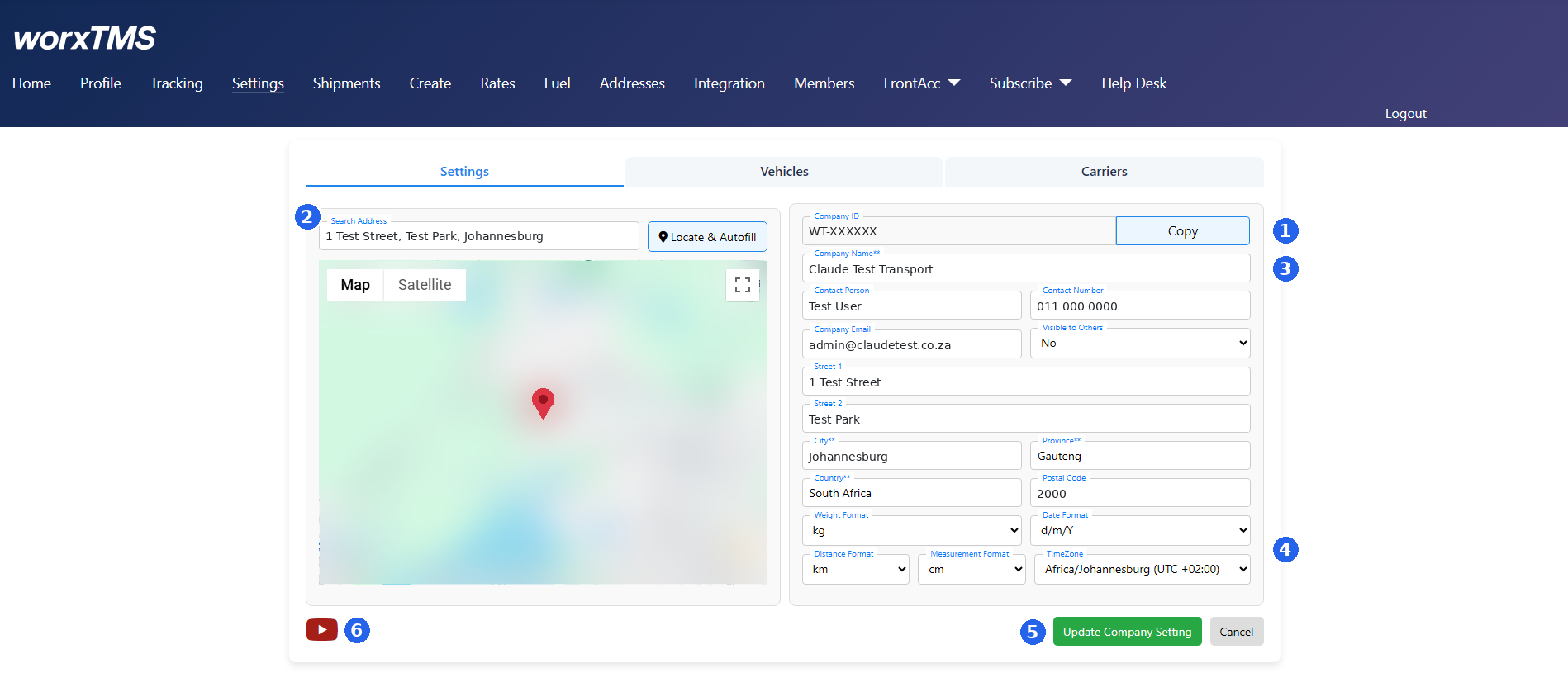
The six areas of the Settings tab
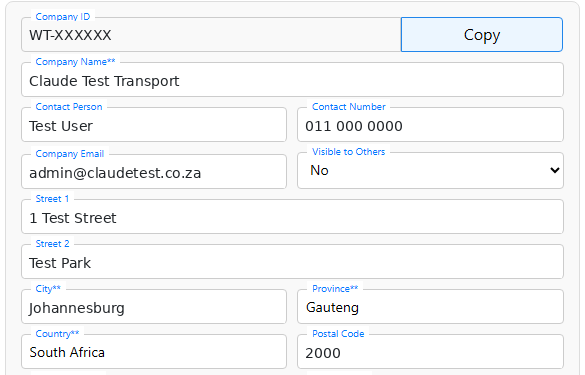
Your Company ID

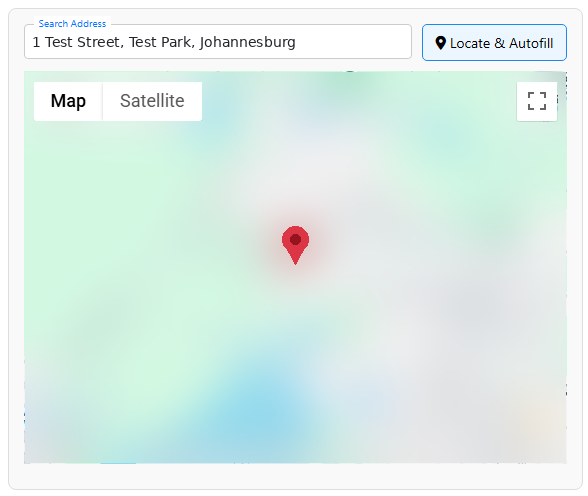
Your address and depot
- Search Address: type your address, like in Google Maps, and pick it from the list
- Locate & Autofill: fills in the address fields on the right from the map
- Map / Satellite: switch between the street map and the satellite photo
- Fullscreen button: makes the map bigger, so you can check the pin is on your yard
Your company details
- Company Name**: your company name as your customers know it
- Contact Person, Contact Number, Company Email: your main contact details
- Visible to Others: not active yet, so changing it has no effect for now
- Street 1, Street 2: your street address
- City**, Province**, Country**, Postal Code: the rest of your address
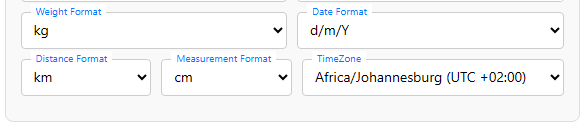
Formats and time zone
- Weight Format: kg or lb, for cargo weights
- Date Format: Y/m/d, d/m/Y or m/d/Y, for how dates are shown and typed
- Distance Format: km or mi, for route distances and whether your rates are per km or per mile
- Measurement Format: cm or in, for length, width and height
- TimeZone: your local time zone, for the times on your shipments
Save your changes

Help video
How to set up your company details
Frequently asked questions
Where do I find my Company ID?
At the top of the right side of the Settings tab. Click Copy to copy it.
Can I change my Company ID?
No. It is fixed for your company.
Where do I set my depot address?
On the Settings tab. Your company address is your depot. It is not set on the Addresses page.
Why is the distance to my first pickup wrong?
worxTMS measures from your depot. Check your company address and the map pin on the Settings tab.
Why are the times on my shipments wrong?
Your TimeZone is probably wrong. Set it to your local time zone and click Update Company Setting.
My distances are in miles. How do I change to km?
Set Distance Format to km and click Update Company Setting.
The street number is missing from my address.
Google sometimes leaves it out. Type it into Street 1 and save.
What does Visible to Others do?
Nothing yet. It is not active.
My changes did not save.
Make sure you clicked Update Company Setting, not Cancel, and that Company Name, City, Province and Country are filled in.
Related articles
- Settings: Vehicles tab: add your vehicles and trailers
- Settings: Carriers tab: connect with other companies using their Company ID
- Route page: see distances measured from your depot
- Rates page: set your rates per km or per mile
- Addresses page: your customers' addresses and delivery points