
Fuel Logging, Consumption Tracking, and Fuel Surcharge Calculations for Transport & Logistics | iShiply.com
Fuel
Add fuel entries manually or pull odometer readings from GPS for accurate, per-vehicle tracking. Ensure clean logs, fuel efficiency, and precise cost control.
Watch: Add Fuel Entries Walkthrough
Need help? Watch this walkthrough for step-by-step guidance on adding fuel entries in your fleet.
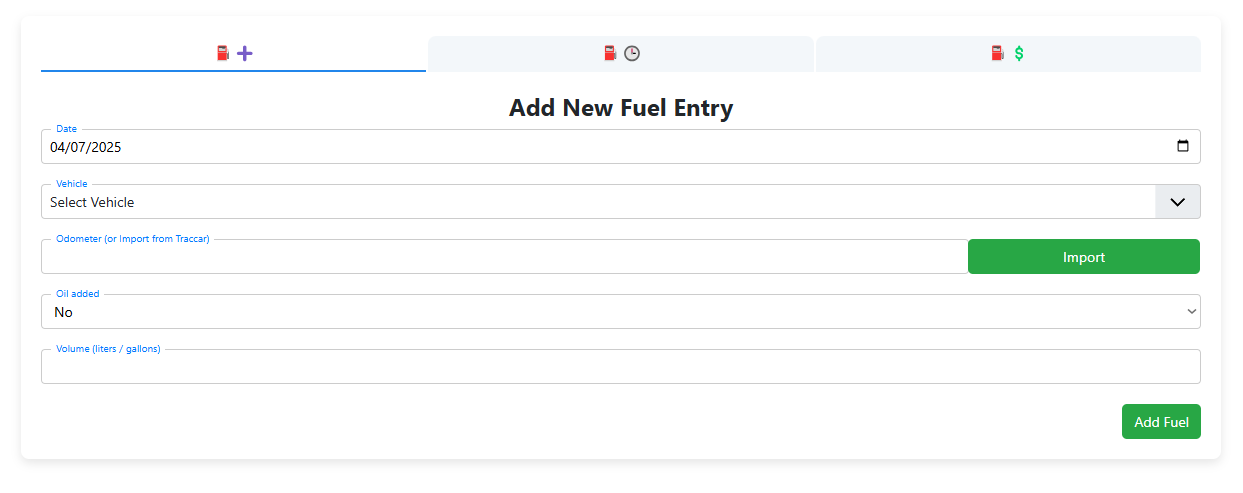
Add Fuel Fields
- Date: Auto-fills to today or selectable from calendar.
- Vehicle: Select from fleet list.
- Odometer: Manually entered or GPS-imported (Traccar supported).
- Oil Added: Optional Yes/No toggle.
- Litres/Gallons: Enter actual fuel volume added.
Workflow: Add Fuel
- Enter each refuel manually or import via GPS.
- Tracks litres per odometer to calculate L/km or MPG.
- Supports oil change tracking and service planning.
- Feeds directly into vehicle logs and reporting.
Pro Tips
- Always log your fuel immediately after filling up.
- Use the odometer field for fuel efficiency calculations.
- Track oil changes in parallel with fuel to monitor wear.
FAQ – Add Fuel
- Do I need GPS?
No, GPS is optional. Manual works just fine. - Can I track oil?
Yes, toggle oil added per refill. - Are all units supported?
Yes, km/miles and liters/gallons are supported.
Track your historical fuel entries by vehicle, see trends, calculate average usage, and export your full log history for reporting or auditing.
Watch: Fuel History Overview
Need help? Watch this walkthrough for reviewing and exporting historical fuel entries.
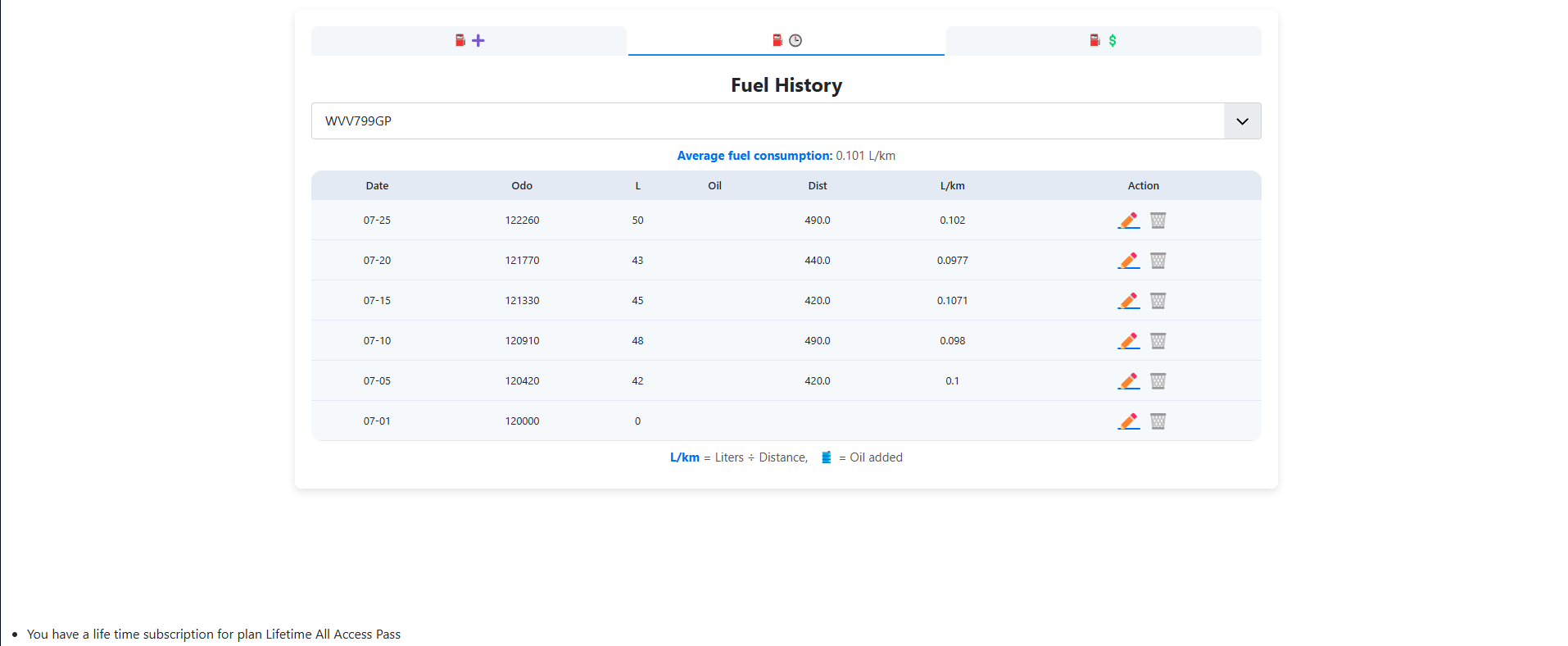
Fuel History Features
- Date & Odometer Logs: Easily view, edit, or delete fuel records.
- Fuel Volume: Track litres filled, oil added, and distances traveled.
- V/dist Average: Auto-calculated fuel consumption for each vehicle.
- Export Logs: Download fuel reports for accounts or compliance.
Workflow: Fuel History
- Every fuel entry appears here by vehicle and date.
- Average consumption (V/dist) is displayed at the top.
- Track driving efficiency and vehicle performance over time.
- Edit or remove old logs with full control and traceability.
Pro Tips
- Use average V/dist to compare fleet efficiency.
- Flag high consumption entries for inspection.
- Keep logs clean — delete duplicate entries as needed.
FAQ – Fuel History
- Can I delete or edit fuel entries?
Yes, with admin rights. - Does the system calculate averages?
Yes, automatically per vehicle. - Can I export my logs?
Yes, for use in Excel or PDF formats.
Use the fuel surcharge manager to auto-calculate transport surcharges based on rising fuel costs and pre-defined fuel factors.
Watch: Fuel Surcharge Manager
Need help? Watch this walkthrough for configuring fuel surcharge settings in worxTMS.
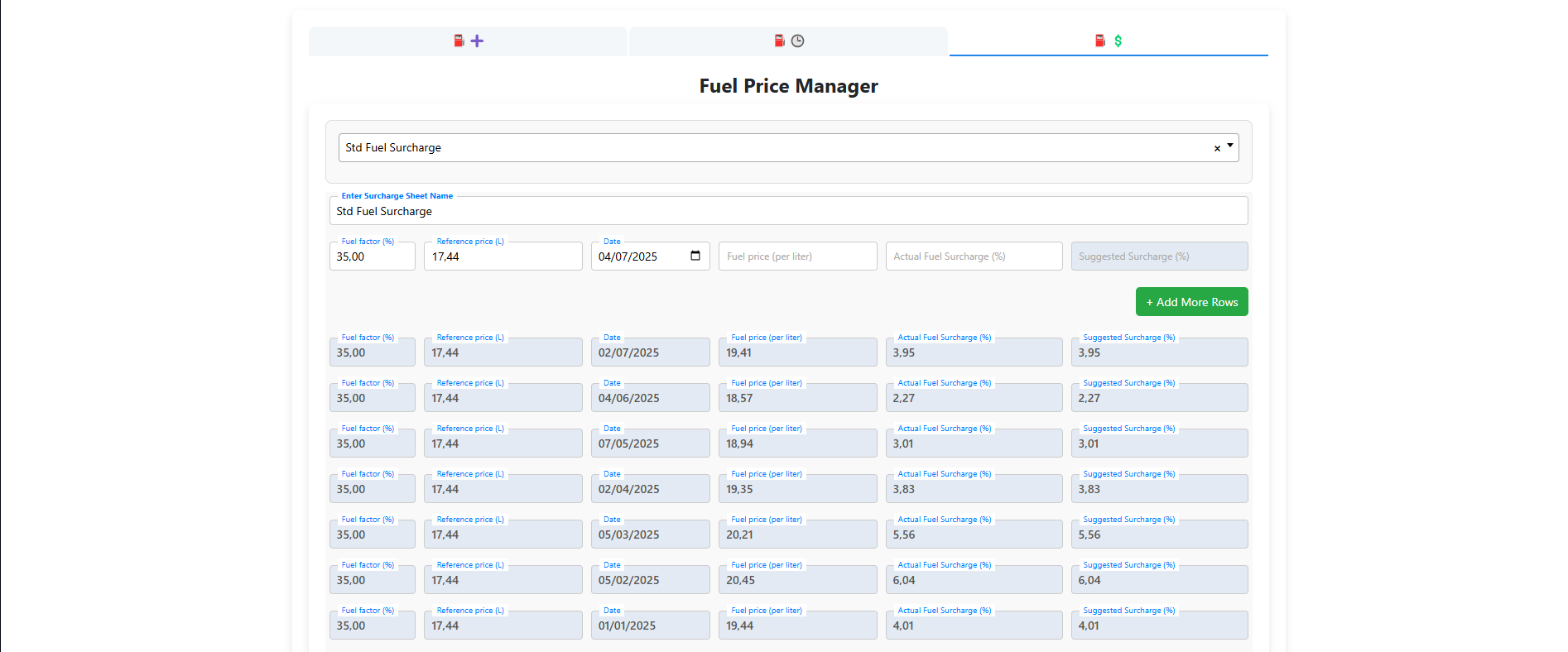
Fuel Surcharge Settings
- Fuel Factor %: Percentage used to calculate surcharge.
- Reference Price: Set baseline fuel price per liter.
- Actual Price: Enter current pump price to auto-calculate surcharge.
- Suggested vs Actual: Compare manually adjusted vs system-generated rates.
Workflow: Fuel Factor
- Enter reference and actual fuel prices.
- Apply your fuel factor percentage.
- System calculates surcharge automatically per job.
- Surcharge is shown on rate sheets and quotes.
Pro Tips
- Update fuel price weekly for accurate billing.
- Keep a fixed reference price for long-term contracts.
- Use suggested vs actual to spot pricing strategy changes.
FAQ – Fuel Surcharge
- What is fuel factor?
A % used to calculate surcharge based on price difference. - Can I adjust the surcharge manually?
Yes, you can override suggested rates. - Is the surcharge applied to every job?
Yes, unless disabled in your settings.